
ALL One Plus Andriod 15 Frp Permanant Remove Without Test or ISP Point - 2026

Nov 6, 2020
5
1
charsadda
1763739708860.png

Here Is The Process How To Downgrade One+ Android 15 to Android 14

    • Tap On next icon ( ➲ ) Select language and go ahead to wifi section then connect wifi or use mobile data connection.
    • Now the Google Account verification screen will appears it's mean this phone is protected by FRP lock
    • Go Back Wifi Section screen
    • Now tap on connected wifi ⓘ icon then forget wifi
    • Use another phone enable mobile data & use wifi hotspot for wifi


  • Connect wifi on oneplus phone using hotspot from another phone


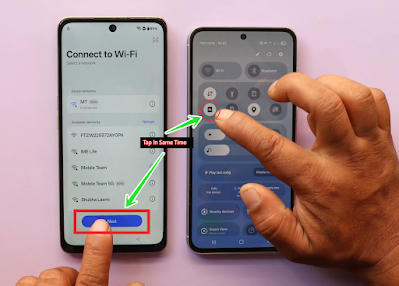
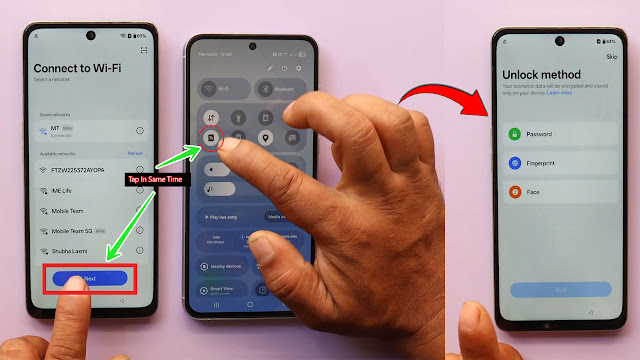
  • Now tap Next & Turn Off hotspot icon in same time

  • After this proceed phone will appear screen lock setup section

  • Go ahead with taping Skip/More/Accept/Done/Let's Go

Now we are arrived at oneplus phone home screen.

  • Go to Wifi Section then Connect Wifi
  • Open Google Chrome
  • Touch on search bar
  • Go to top right ➜ corner tap on search icon
  • Search OnePlus OTA Files
  • Open Link OnePlus OTA Files 2025 (Android 14)
  • Scroll down & find your phone models with CPHXXXX model
  • Download if into Phone
  • This may takes few minutes to download it may depend on your network
After OTA File Download Complete

  • Open Settings ➜ System & Update ➜ Software Update
  • Waiting for checking update > Phone must be up to date with latest version
  • Tap on 3 dot at top right corner ➜ there is not available Local Install
  • Go back to settings main manu
  • Tap on About device ➜ version ➜ tap 7 times on Version No.
  • Now go back to settings main manu ➜ System & Update ➜ Software Update
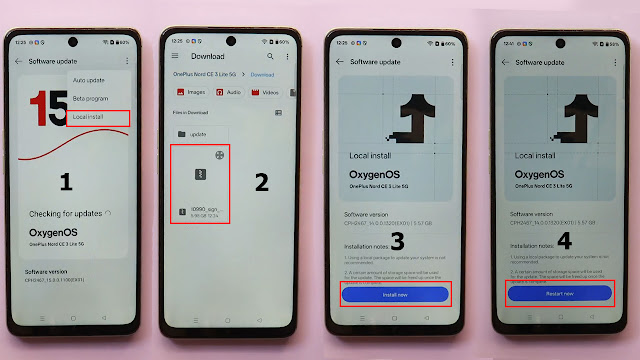
  • Go to top right ➜ corner 3 dots ➜ Now Local Install available ➜ Tap on it
  • Choose destination folder where OTA file downloaded ➜ Select OTA file
  • Now you can see Local install OxygenOS with Installation notes.
  • Tap On Install Now
  • This may takes approximately 15 - 20 minutes don't press power key & phone have enough charge
  • Wait until installation proceed 100%


  • Phone will restart & wiping phone's data then automatically reboot

After Few Minutes Phone Screen lead Wigh Hello Screen

  • Tap On next icon ( ➲ ) Select language and go ahead to wifi section
  • Use another phone enable mobile data & use wifi hotspot for wifi
  • Connect wifi on oneplus phone using hotspot from another phone
  • Now tap Next & Turn Off hotspot icon in same time
  • After this proceed phone will appear screen lock setup section
  • Go ahead with taping Skip/More/Accept/Done/Let's Go
  • After this few steps you will get Phone Home Screen
  • That's it enjyo...
 

leuis

Junior Member
Sep 28, 2026
1
1
India

Here Is The Process How To Downgrade One+ Android 15 to Android 14

    • Tap On next icon ( ➲ ) Select language and go ahead to wifi section then connect wifi or use mobile data connection.
    • Now the Google Account verification screen will appears it's mean this phone is protected by FRP lock
    • Go Back Wifi Section screen
    • Now tap on connected wifi ⓘ icon then forget wifi
    • Use another phone enable mobile data & use wifi hotspot for wifi


  • Connect wifi on oneplus phone using hotspot from another phone


  • Now tap Next & Turn Off hotspot icon in same time


  • After this proceed phone will appear screen lock setup section


  • Go ahead with taping Skip/More/Accept/Done/Let's Go

Now we are arrived at oneplus phone home screen.

  • Go to Wifi Section then Connect Wifi
  • Open Google Chrome
  • Touch on search bar
  • Go to top right ➜ corner tap on search icon
  • Search OnePlus OTA Files
  • Open Link OnePlus OTA Files 2025 (Android 14)
  • Scroll down & find your phone models with CPHXXXX model
  • Download if into Phone
  • This may takes few minutes to download it may depend on your network
After OTA File Download Complete

  • Open Settings ➜ System & Update ➜ Software Update
  • Waiting for checking update > Phone must be up to date with latest version
  • Tap on 3 dot at top right corner ➜ there is not available Local Install
  • Go back to settings main manu
  • Tap on About device ➜ version ➜ tap 7 times on Version No.
  • Now go back to settings main manu ➜ System & Update ➜ Software Update
  • Go to top right ➜ corner 3 dots ➜ Now Local Install available ➜ Tap on it
  • Choose destination folder where OTA file downloaded ➜ Select OTA file
  • Now you can see Local install OxygenOS with Installation notes.
  • Tap On Install Now
  • This may takes approximately 15 - 20 minutes don't press power key & phone have enough charge
  • Wait until installation proceed 100%


  • Phone will restart & wiping phone's data then automatically reboot

After Few Minutes Phone Screen lead Wigh Hello Screen

  • Tap On next icon ( ➲ ) Select language and go ahead to wifi section
  • Use another phone enable mobile data & use wifi hotspot for wifi
  • Connect wifi on oneplus phone using hotspot from another phone
  • Now tap Next & Turn Off hotspot icon in same time
  • After this proceed phone will appear screen lock setup section
  • Go ahead with taping Skip/More/Accept/Done/Let's Go
  • After this few steps you will get Phone Home Screen
  • That's it enjyo...
After one successful Frp bypass using the wifi and next button. I reboot the phone which is going back to FRP. Now I have tried the wifi and next button again 100 time but it is not going through. Any suggestions. Please help
 
  • Like
Reactions: Pyrofreak90

caspbab

Junior Member
Sep 8, 2026
3
0
UK
The OnePlus Android 15 FRP removal process in 2026 has attracted attention from users looking for device access solutions. Understanding the available methods can help users troubleshoot common FRP issues. Piso WiFi pause time is another useful topic for users interested in managing their internet sessions. Both topics offer practical information for everyday technology users.
 
Top