


Here Is The Process How To Downgrade One+ Android 15 to Android 14
- Tap On next icon ( ➲ ) Select language and go ahead to wifi section then connect wifi or use mobile data connection.
- Now the Google Account verification screen will appears it's mean this phone is protected by FRP lock
- Go Back Wifi Section screen
- Now tap on connected wifi ⓘ icon then forget wifi
- Use another phone enable mobile data & use wifi hotspot for wifi
- Connect wifi on oneplus phone using hotspot from another phone
- Now tap Next & Turn Off hotspot icon in same time
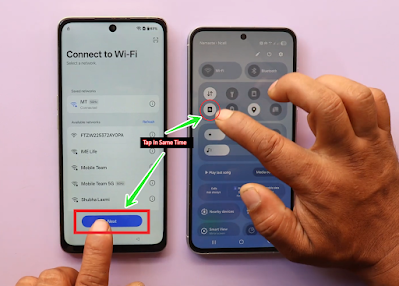
- After this proceed phone will appear screen lock setup section
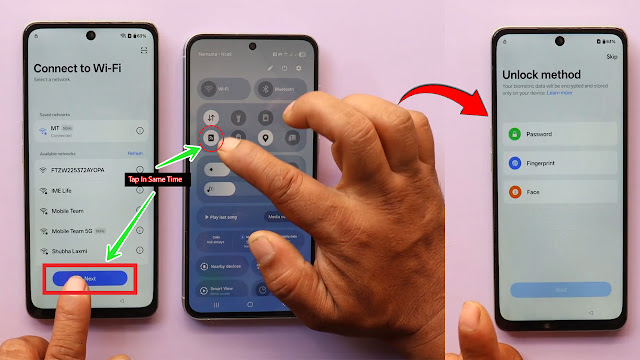
- Go ahead with taping Skip/More/Accept/Done/Let's Go
Now we are arrived at oneplus phone home screen.
- Go to Wifi Section then Connect Wifi
- Open Google Chrome
- Touch on search bar
- Go to top right ➜ corner tap on search icon
- Search OnePlus OTA Files
- Open Link OnePlus OTA Files 2025 (Android 14)
- Scroll down & find your phone models with CPHXXXX model
- Download if into Phone
- This may takes few minutes to download it may depend on your network
- Open Settings ➜ System & Update ➜ Software Update
- Waiting for checking update > Phone must be up to date with latest version
- Tap on 3 dot at top right corner ➜ there is not available Local Install
- Go back to settings main manu
- Tap on About device ➜ version ➜ tap 7 times on Version No.
- Now go back to settings main manu ➜ System & Update ➜ Software Update
- Go to top right ➜ corner 3 dots ➜ Now Local Install available ➜ Tap on it
- Choose destination folder where OTA file downloaded ➜ Select OTA file
- Now you can see Local install OxygenOS with Installation notes.
- Tap On Install Now
- This may takes approximately 15 - 20 minutes don't press power key & phone have enough charge
- Wait until installation proceed 100%
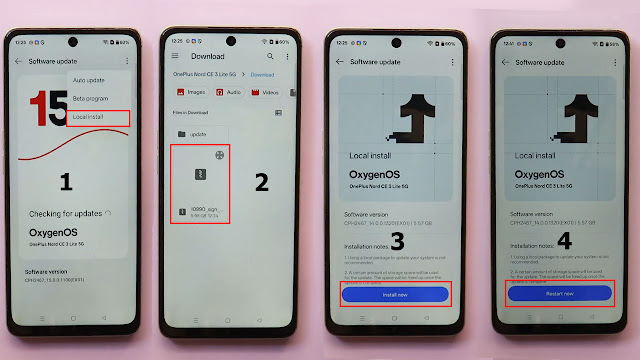
- Phone will restart & wiping phone's data then automatically reboot
After Few Minutes Phone Screen lead Wigh Hello Screen
- Tap On next icon ( ➲ ) Select language and go ahead to wifi section
- Use another phone enable mobile data & use wifi hotspot for wifi
- Connect wifi on oneplus phone using hotspot from another phone
- Now tap Next & Turn Off hotspot icon in same time
- After this proceed phone will appear screen lock setup section
- Go ahead with taping Skip/More/Accept/Done/Let's Go
- After this few steps you will get Phone Home Screen
- That's it enjyo...